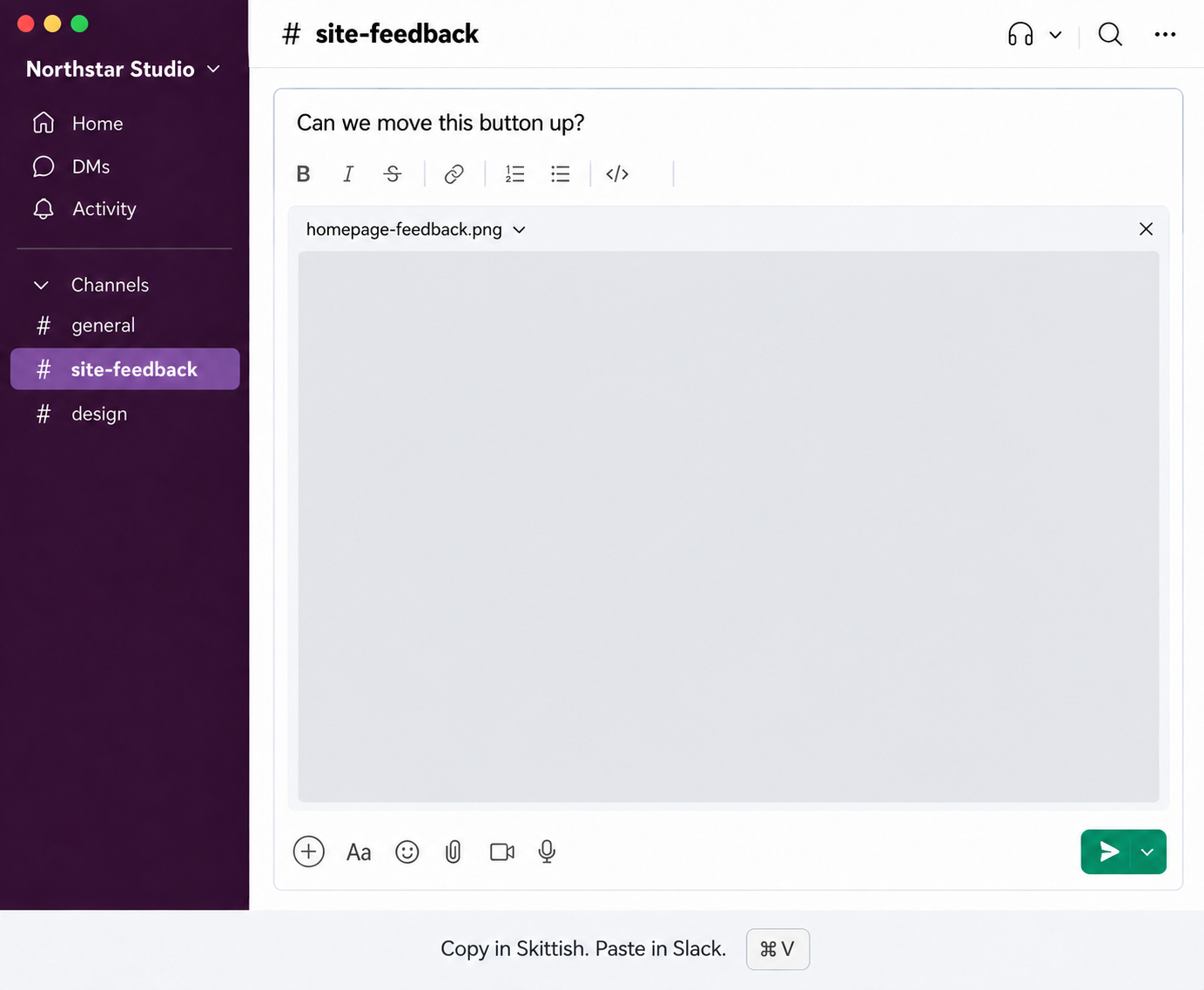
Get straight to the point.
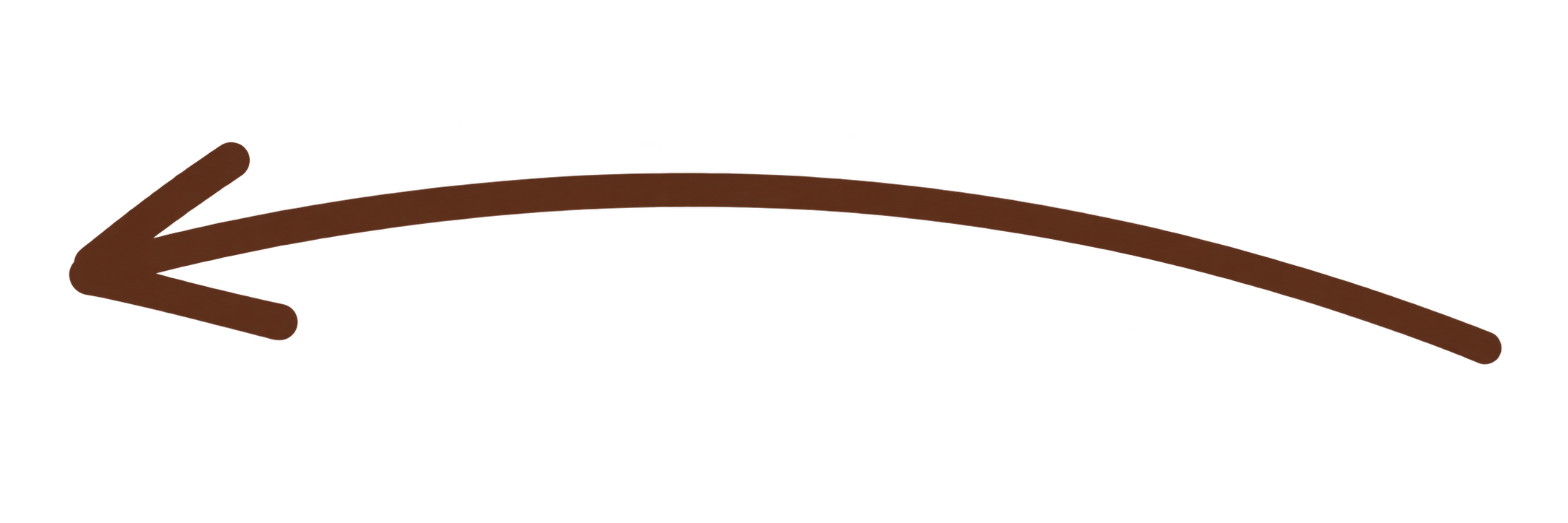
Guide the eye with a straight or curved arrow. Adjust the colour, width, and bend to suit your image.
 Skittish
Get Skittish
Skittish
Get Skittish
A LITTLE MAC APP WITH A CLEAR PURPOSE
Turn a screenshot into clear feedback. Add an arrow, visually blur a detail, leave a callout, or bring Skit along. Copy it into your next conversation.
Made for Apple Silicon · macOS 14 or later
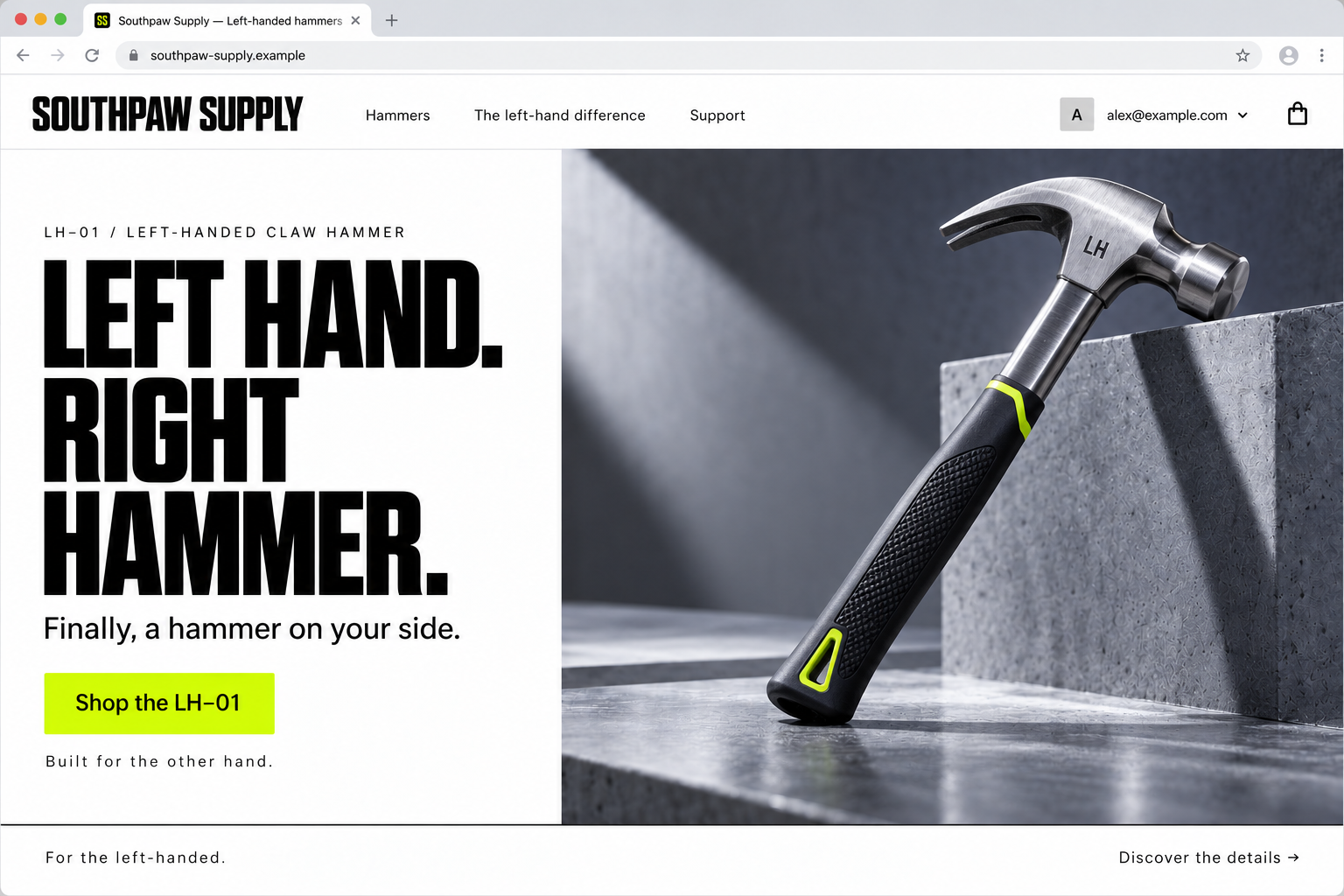
Illustrative demo: a magnifier moves over the fictional shop as Skittish adds a curved arrow, blurs a private email, adds a callout and Skit sticker, then copies the image into a Slack draft.
JUST THE TOOLS YOU NEED
A screenshot, a photo, a quick piece of feedback.
Make the important part easy to see.
Guide the eye with a straight or curved arrow. Adjust the colour, width, and bend to suit your image.
Blur is a visual effect, not secure redaction. Don’t rely on it to hide highly sensitive information.
Add plain text, a cream callout, or a peach note. Say what you need, right where you need it.
FROM “LOOK AT THIS” TO “GOT IT”
No grand production.
Just a clearer image in a few simple steps.
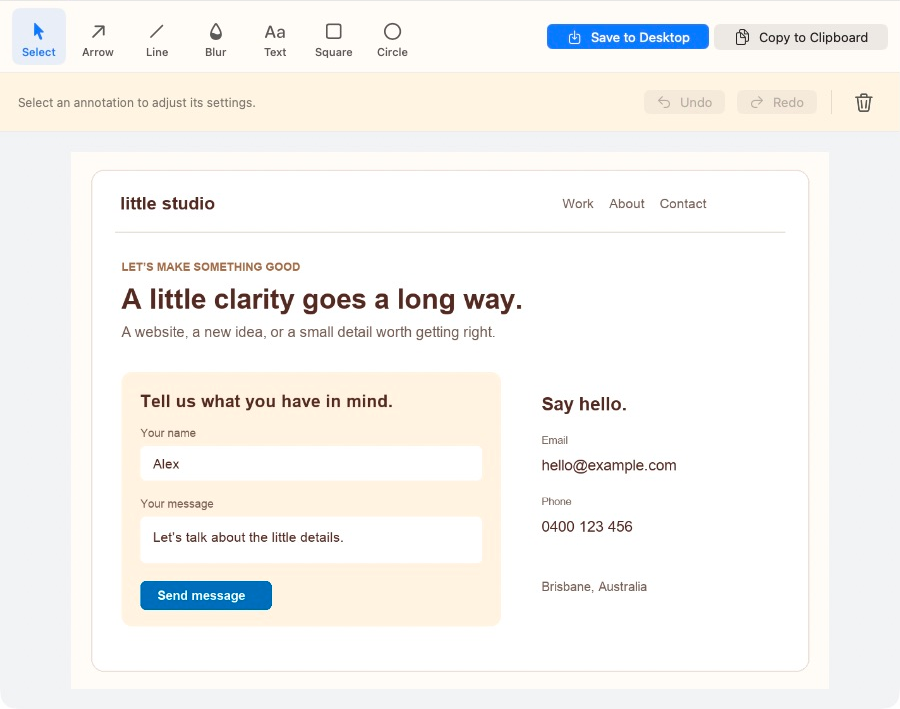
Open PNG, JPEG, HEIC, WebP, and other image formats supported by macOS.
⌘ OFEELS RIGHT AT HOME
Familiar shortcuts and a quiet canvas. Skittish gives your image room, and keeps you in control.
Open, undo, redo, copy, and save with the keys you already know.
Exports keep the source image’s dimensions unless an annotation extends beyond it; then the canvas expands with white space.
Pinch or Option-scroll to zoom. Hold Space and drag to move around your image.
Annotate and export a new image. Your original file is never modified.
BIG EARS. SHARP EYES.
Your next screenshot could use a little Skittish.
Preview build · Locally signed and not notarized. macOS may prevent it from opening. A notarized release will be announced here after verification.
FIRST TIME HERE?
NO IN-APP UPDATER
Updates are installed manually; Skittish does not check for updates or notify you in the app.
THE LITTLE QUESTIONS
Skittish runs on Apple Silicon Macs with macOS 14 or later. This download is a locally signed preview build and is not notarized.
Open the downloaded ZIP, drag Skittish.app into Applications, and open it from there. To update, download the latest ZIP, quit Skittish, and replace the app in Applications. Updates are manual; there is no in-app updater.
No. Blur changes how a region looks in the exported image; it is not secure redaction. Don’t rely on blur to conceal highly sensitive information.
Open PNG, JPEG, HEIC, WebP, and other image formats supported by macOS. Skittish exports a flattened PNG at the source image’s dimensions unless an annotation extends beyond the image, in which case the canvas expands with white space. Save it to your chosen export folder or copy it to the clipboard.
No. Your original file stays untouched. Arrows, text, and blur regions are combined into a separate PNG when you save or copy.
Yes. Use ⌘Z to undo and ⇧⌘Z to redo. You can select annotations to move, resize, adjust, or delete them.